Best overall: Loom for quick onboarding explanations. Best for edited training: Camtasia. Best for capture control: OBS Studio. The best screen recording software for onboarding videos in 2026 depends on whether you need a shareable explanation, a reusable lesson, or a configurable recording workflow.
- Loom is the best screen recording software for onboarding videos when fast explanations matter more than detailed editing.
- Camtasia fits reusable product training; OBS Studio fits configurable screen capture and audio workflows.
- ScreenFlow fits Mac-based training production; QuickTime Player fits simple Mac recordings.
- Knolbase turns existing product videos and documentation into persona-specific portals, in-app widgets, and chatbots.
Why this matters
A screen recorder captures the workflow. It does not decide which customer should see that workflow, where help belongs, or whether the customer completes the task afterward.
Knolbase onboarding software fits B2B SaaS teams turning product videos and documentation into persona-specific help. Its role follows recording: turn existing material into personalized onboarding portals, in-app widgets, and chatbot answers.
For your 2026 shortlist, separate content creation from content delivery. Product teams need clear demonstrations. Customer-success teams need explanations they can reuse. Onboarding teams need those explanations placed where customers need help.
What makes the best onboarding video recorder
Judge recording software against the work your team actually produces. A tool suited to an immediate customer reply is not automatically the right choice for an edited training library.
- Capture fit: Record the application, narration, and camera footage your explanation needs.
- Editing depth: Remove mistakes and distractions without rebuilding the whole lesson.
- Visual clarity: Make interface labels, cursor movements, and completed actions easy to follow.
- Delivery fit: Decide whether you need a shareable recording or a video file for another destination.
- Maintenance effort: Choose a workflow your team can repeat when the product interface changes.
- Onboarding context: Match the lesson to a persona and a task, not just a feature list.
Start with the output. If a customer needs an answer now, recording and sharing matter most. If the video becomes part of recurring onboarding, editing and maintenance deserve more attention.
Screen recording software at a glance
The table compares workflow fit, not claimed performance gains. None of these recorders replaces a complete product-onboarding delivery workflow.
| Tool | Best for | Standout capability | Key limitation |
|---|---|---|---|
| Loom | Quick onboarding explanations | Screen and camera recording with link-based sharing | Shared videos still need placement in the customer journey |
| Camtasia | Edited, reusable product training | Screen recording and timeline-based video editing | Production involves an editing workflow |
| OBS Studio | Configurable capture | Scenes, sources, and audio mixing | It is not a timeline video editor |
| ScreenFlow | Mac-based training production | Screen recording and editing in a Mac application | It does not serve Windows recording teams |
| QuickTime Player | Simple Mac recordings | Basic screen capture and trimming | It lacks a full training-video editing workspace |
1. Loom: best onboarding recorder for quick explanations
Loom combines screen recording, camera recording, and link-based sharing. It fits a customer-success workflow where someone needs to see an action rather than read a long explanation. Record the task, review the result, and share the recording with the relevant customer.
Best for: Customer-success and onboarding teams producing quick answers to specific product questions.
Loom pros
- Screen and camera recording supports a narrated product explanation.
- Link-based sharing gives the recording a straightforward delivery route.
- Basic trimming helps remove unnecessary material from the beginning or end.
- The workflow fits task-focused replies rather than full training productions.
Loom cons
- A shared video still needs a clear place in the onboarding journey.
- Repeatedly sending recordings does not create a maintained training structure by itself.
- Videos containing customer-specific information need review before broader reuse.
For a 2026 evaluation, use Loom's official Help Center to confirm recording, editing, and sharing controls for your intended setup. Then record a real onboarding task, not a generic welcome message. A useful recording shows the starting state, the action, and the result the customer should recognize.
Verdict: Buy for quick explanations. Choose Loom when recording and sharing an answer is the core job; choose an editing-focused tool when the lesson needs more production work.
2. Camtasia: best onboarding recorder for reusable training
Camtasia combines screen capture with a timeline video editor. You can arrange recordings, edit narration, add annotations, and emphasize cursor activity. That makes it a strong fit for lessons that will be reused across onboarding cohorts.
Best for: Product education teams building edited demonstrations of recurring workflows.
Camtasia pros
- Recording and editing belong to the same production workflow.
- Timeline editing supports restructuring a lesson after capture.
- Annotations and cursor effects help direct attention to interface actions.
- Separate media elements support more deliberate presentation than an unedited recording.
Camtasia cons
- An editing workflow adds work to a simple customer reply.
- A finished video still needs a publishing destination and onboarding context.
- Interface changes require reviewing the recorded footage, not just the narration.
Use TechSmith's official Camtasia documentation to check capture options, editing tools, and export requirements. Keep the lesson organized around one customer outcome. A polished tour of unrelated features is harder to place in onboarding than a demonstration of a specific task.
For your 2026 production workflow, retain the editing project alongside the exported video. That gives the content owner a place to revise narration, annotations, and replaced footage.
Verdict: Buy for reusable lessons. Choose Camtasia when editing quality and repeatable training production matter more than immediate link sharing.
3. OBS Studio: best onboarding recorder for capture control
OBS Studio records video using configurable scenes and sources. You can combine screen or window capture, camera input, and audio sources into a recording layout. It suits teams that want deliberate control over what gets captured.
Best for: Technically comfortable teams producing repeatable recordings with multiple inputs.
OBS Studio pros
- Scenes organize different capture layouts.
- Sources let you select the visual inputs used in a recording.
- Audio mixing supports control over narration and other sound inputs.
- Recording settings support a deliberate output configuration.
OBS Studio cons
- OBS Studio does not provide a timeline editor for revising the finished lesson.
- Scene and audio setup require attention before recording.
- Publishing and onboarding delivery remain separate tasks.
Consult the official OBS Studio Quick Start Guide and knowledge base for scene, source, and audio setup. Save a recording configuration your team understands, then check it before each capture. A technically sophisticated layout is not useful if the interface text becomes too small to read.
For conventional Full HD video, 1920 × 1080 pixels uses a 16:9 aspect ratio. A 30-frames-per-second recording is a common starting point for ordinary interface demonstrations; judge readability at the actual playback size rather than treating resolution as proof of clarity.
Verdict: Buy for capture control. Choose OBS Studio when configurable recording matters and your team can handle editing and publishing separately.
4. ScreenFlow: best onboarding recorder for Mac-based production
ScreenFlow combines screen recording and video editing on macOS. Its editing workflow includes arranging footage and adding visual explanations. It belongs on the shortlist when a Mac-based team wants to produce reusable onboarding lessons.
Best for: Mac-based product education teams that need recording and editing together.
ScreenFlow pros
- Screen capture and editing sit within one application.
- Timeline editing supports combining and revising recorded material.
- Callouts and annotations help explain interface actions.
- A Mac-focused workflow suits teams already producing content on macOS.
ScreenFlow cons
- ScreenFlow does not cover Windows-based recording needs.
- Editing takes more production effort than sending a simple recording.
- The exported lesson still needs a delivery destination and maintenance owner.
Check Telestream's official ScreenFlow documentation for the current macOS requirements and the capture inputs your team needs. Device compatibility belongs in the evaluation before editing preferences. Do not select a Mac-only production workflow for a team that must record from Windows machines.
In your 2026 shortlist, compare ScreenFlow with Camtasia using the same source recording. Focus on the editing actions your team repeats: removing mistakes, highlighting controls, and replacing outdated footage.
Verdict: Buy for Mac-based training production. Choose ScreenFlow when macOS is a settled requirement and edited lessons are the main output.
5. QuickTime Player: best onboarding recorder for simple Mac capture
QuickTime Player provides a route to basic screen recording on a Mac and supports trimming recordings. It fits a straightforward task: capture a product action, remove unnecessary footage, and save the result. It is not a full training-video production environment.
Best for: Mac users creating uncomplicated product demonstrations for later editing or delivery.
QuickTime Player pros
- Basic screen recording fits simple demonstrations.
- Trimming removes unwanted material around the useful footage.
- A saved recording can become source material for a separate editing workflow.
QuickTime Player cons
- QuickTime Player lacks a full timeline workspace for layered training production.
- Screen capture does not include an onboarding publishing workflow.
- More involved narration and visual editing belong in another tool.
Apple's Mac User Guide documents the screen-recording and trimming workflows. Check the recording controls and microphone selection before capturing a customer-facing explanation. Review the file before sending it to an editor or adding it to onboarding material.
Verdict: Buy for simple capture. Choose QuickTime Player when the job is an uncomplicated Mac recording; skip it as the main editor for a developed training library.
How the ranking works
This ranking assigns each recorder a distinct workflow: quick sharing, reusable editing, configurable capture, Mac-based production, or simple Mac capture. The criteria are capture fit, editing depth, visual clarity, delivery fit, maintenance effort, and onboarding context.
The capability references are the official documentation from Loom, TechSmith, OBS Studio, Telestream, and Apple. This is a workflow-fit ranking, not a hands-on performance benchmark or a claim about activation improvements.
Turn recordings into an onboarding workflow
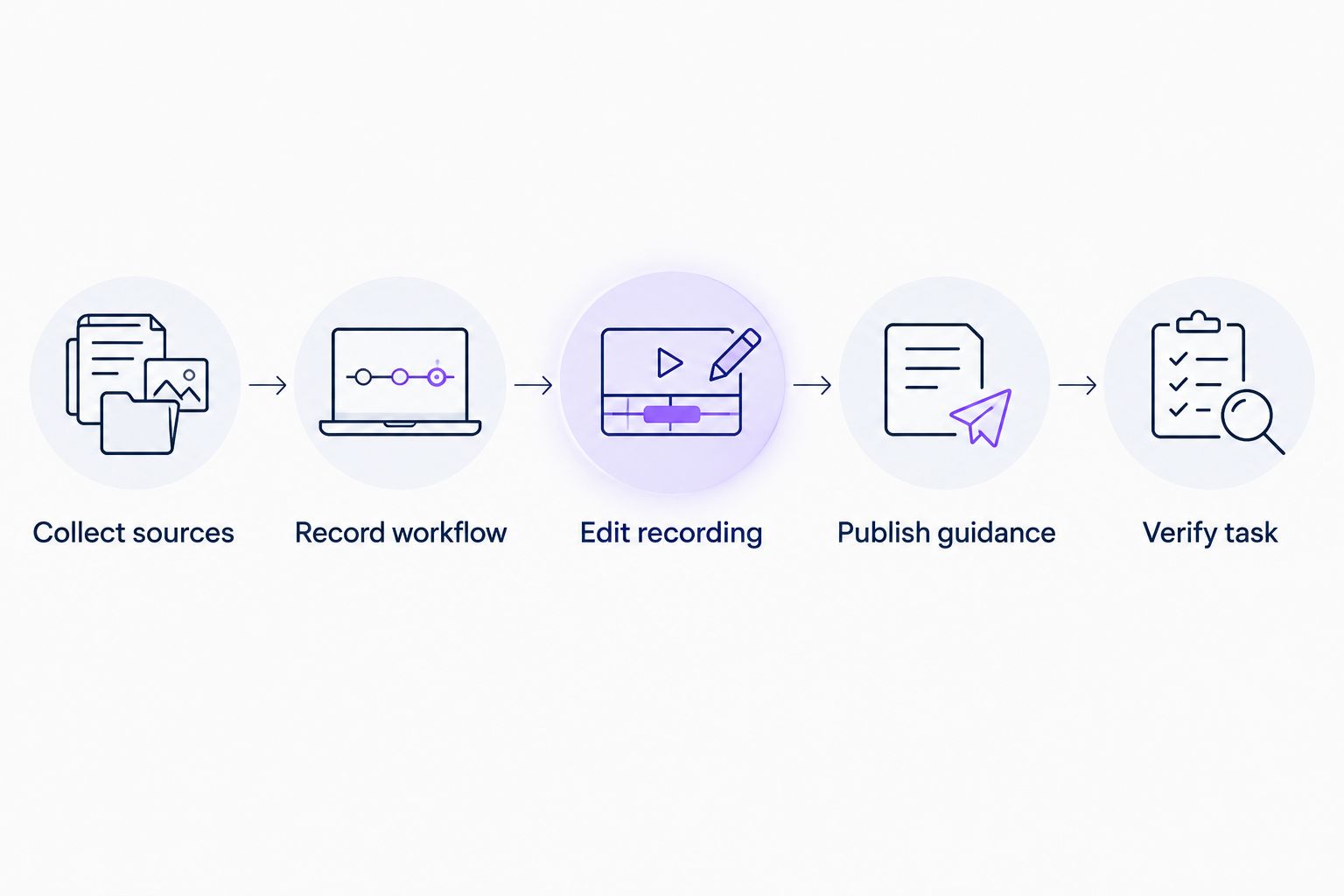
Recording is the middle of the process, not the whole process. Use this sequence to connect a demonstration to the customer task it supports.
Collect sources
Gather the product documentation and existing videos for a specific task. Identify the persona, the required starting state, and the result the customer needs to reach.
Record workflow
Show the action in a clean demonstration environment. Remove private customer information and unrelated interface distractions before capture.
Edit recording
Cut material that does not help complete the task. Keep the narration aligned with the visible action, and show the finished state before ending.
Publish guidance
Place the explanation where the relevant customer needs it. Knolbase onboarding software turns existing product videos and documentation into personalized portals, in-app widgets, and chatbots; it complements the recorder rather than replacing the capture step.
Verify task
Ask someone unfamiliar with the workflow to follow the explanation. Check whether that person reaches the intended result without extra clarification.
Which screen recording software should you choose?
Choose Loom by default for quick onboarding explanations. Choose Camtasia for an edited training library, OBS Studio for configurable capture, ScreenFlow for Mac-based editing, and QuickTime Player for simple Mac recordings.
Before committing in 2026, produce the same real customer task in your leading candidates. Compare the work required to record, correct, publish, and update it. A feature list cannot show whether the workflow fits your team.
Keep the delivery decision separate. Knolbase fits teams that already have videos and documentation and need to turn those sources into persona-specific onboarding help.
FAQ
What's the best screen recording software for onboarding videos?
Loom is the default choice for quick onboarding explanations. Camtasia is the better fit when the main requirement is editing reusable training lessons rather than sharing an immediate answer.
Is Loom better than Camtasia for SaaS onboarding?
Loom fits quick recorded answers; Camtasia fits edited training production. Choose based on whether your team mainly sends task-specific explanations or maintains reusable lessons.
Can OBS Studio create onboarding videos?
OBS Studio can record onboarding demonstrations using scenes, visual sources, and audio inputs. It does not provide timeline video editing, so plan a separate editing workflow when the recording needs revision.
What's the best option for recording onboarding videos on a Mac?
ScreenFlow fits Mac-based recording and editing, while QuickTime Player fits basic capture. Camtasia also belongs in the evaluation when reusable edited training is the goal.
Do I need a screen recorder or onboarding software?
You need a screen recorder to capture the product demonstration and onboarding software to deliver contextual guidance. Knolbase turns existing videos and documentation into personalized portals, in-app widgets, and chatbots.
What resolution should I use for a product onboarding video?
Full HD at 1920 × 1080 pixels is a conventional starting point for product demonstrations. Check that interface labels remain readable at the actual playback size; resolution alone does not guarantee clarity.
How do I choose a screen recorder for my onboarding team?
Record the same customer task with your shortlisted tools and compare capture, editing, publishing, and update effort. Choose the workflow your team can maintain when the product changes.
One last thing
Record a completed task, not a narrated menu tour. End with the state the customer should recognize: a configured setting, a completed action, or an output they can inspect. That ending makes the video easier to assess, reuse, and place in onboarding.